Homework
Homework — Post, View, and Submit Homework (Teacher / Student / Parent)
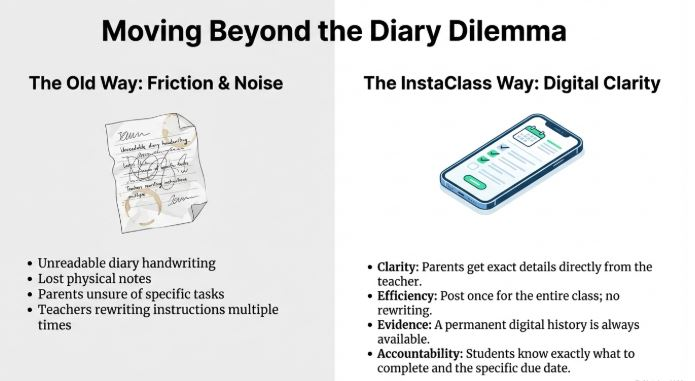
The Homework feature in InstaClass helps teachers share homework clearly with students and parents using text and attachments (including a photo of the blackboard). This avoids confusion from unreadable diary writing and helps parents support their child better. Teachers can post once for the entire class, add a due date, and optionally allow students to submit homework online.
1) Who can use Homework in InstaClass?
✅ Teachers
- Create homework (Draft / Publish)
- Add description, due date, attachments (photo/file/link)
- Review student submissions (approve/reject)
✅ Students / Parents
- View published homework for their class
- Download/open attachments
- Submit homework (if enabled by teacher)
2) What a Homework post includes
Each homework entry can contain:
- Class & Section (Grade + Section for the selected Academic Year)
- Subject (name/code)
- Title (required)
- Description (optional but recommended)
- Due Date (required)
- Attachments (optional)
- File (photo, PDF, etc.)
- Link (Google Drive, YouTube, worksheet link, etc.)
- Status
- Draft (not visible to parents/students)
- Published (visible to class)
- Archived (old/closed)
- Student Submissions (optional, if enabled)
- submitted → approved/rejected
3) Why this feature helps schools
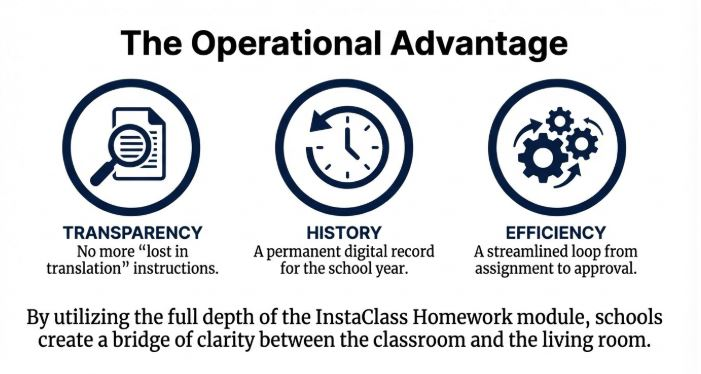
- Parents get clear homework details directly from the teacher
- No confusion from diary handwriting
- Teachers avoid rewriting homework for each student’s notebook
- Students know exactly what to complete and by when
- Homework history is always available in the app
4) Step-by-step: Teacher posts homework
Step 1 — Open Homework module
- Login as Teacher
- Go to Homework
- Click Create Homework / Post Homework
Step 2 — Select class and subject
Choose:
- Academic Year
- Class / Section
- Subject
✅ Make sure you pick the correct class & section before posting.
Step 3 — Add homework content
Fill the fields:
A) Title (required)
Example: “Maths – Page 12 Exercises”
B) Description (recommended)
Example:
“Complete Q1–Q8 in notebook. Revise multiplication tables 2–10.”
C) Attachments (optional)
You can add:
- ✅ Photo of the blackboard (most common)
- PDF worksheet
- Image / document
- Link (Drive, YouTube explanation, reference link)
📌 Tip: Blackboard photo posting is perfect when homework is already written in class. Just click a picture and upload.
D) Due Date (required)
Select the date by which students should complete the homework.
Step 4 — Enable or disable student submission (optional)
Teachers can decide if students should submit homework in the app:
✅ Enable Submit = ON
- Students can upload their work (photo/file/link) and add a note
- Teacher can review and approve/reject
❌ Enable Submit = OFF
- Homework is view-only (students/parents can read it but not submit)
Step 5 — Save as Draft or Publish
Choose the homework status:
- Draft → Save now, publish later (not visible to students/parents)
- Published → Visible immediately to the class
- Archived → Close/hide old homework (for history)
✅ Recommended workflow:
- Create as Draft → Review → Publish
5) Student/Parent: How to view homework
- Login as Student or Parent
- Go to Homework
- Select the date range or filter (if available)
- Open a homework post
- Read description and open/download attachments
✅ Parents can easily see exactly what work is given and ensure the child completes it.
6) Student: How to submit homework (if enabled)
If “Enable Submit” is ON:
- Open the homework post
- Click Submit
- Upload:
- Photo of completed work OR
- File/PDF OR
- Link (if allowed)
- Add a note (optional)
- Submit
After submitting:
- Submission status becomes Submitted
- Teacher can review and update it to Approved or Rejected
7) Teacher: Review homework submissions
- Open Homework post
- Go to Submissions
- For each student submission:
- View attachments
- Add remarks if needed
- Mark as:
- ✅ Approved
- ❌ Rejected
This helps teachers track which students submitted the work and whether it’s acceptable.
8) Best practices (highly recommended)
- Use a clear title: “Subject + Task”
- Always set a due date
- Post blackboard photo for clarity when needed
- Add small instructions in description (page numbers, questions, notebook type)
- Use submission only when you need proof/tracking (not for every homework)
9) Common mistakes to avoid
- Posting to the wrong class/section
- Forgetting due date
- Publishing before checking content
- Using unclear titles like “Do it” (avoid)
- Not enabling submission when you actually want students to upload work