Holiday Calendar
Holiday Calendar — Manage & Publish School Holidays (Admin Guide)
InstaClass helps schools maintain an official Holiday Calendar for each Academic Year. Schools can add a complete public holiday list in one click, add custom holidays (Study Holiday, Annual Day, Sports Day, etc.), and publish the calendar so it becomes visible to staff, students, and parents—helping everyone plan ahead.
1) What is the Holiday Calendar in InstaClass?
The Holiday Calendar is the school’s official list of holidays and non-working days for a selected Academic Year.
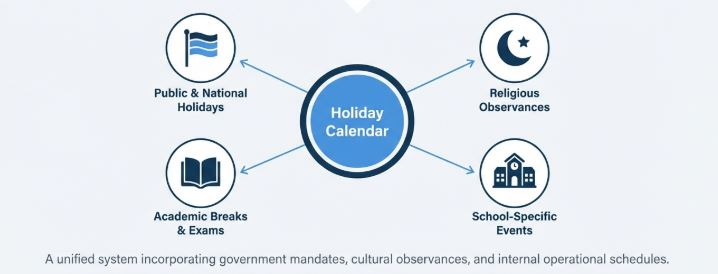
It includes:
- Public/National holidays
- Religious holidays (optional, based on region)
- School-specific holidays (Annual Day, School Day, Staff Training)
- Study holidays / Exam holidays
- Other events that affect working days
Once published, holidays appear across the app for:
- Staff
- Students
- Parents
2) Who can manage holidays?
Typically:
- School Admin / Principal Office
- Academic Coordinator
- HR / Office Admin (if permitted)
Other roles can usually only view published holidays.
3) Key behavior (how it works)
Academic Year based
Holidays are saved per:
- Tenant (School) + Academic Year
So every year you create and publish a fresh holiday calendar.
Published vs Draft
- Draft (Not Published) → Only visible to admins (based on access)
- Published → Visible according to Visibility:
- Everyone (staff + students + parents)
- Staff-only
4) One-click public holiday list (recommended first step)
In InstaClass, schools can load a default public holiday list for the selected academic year in one click.
✅ This is useful because it saves time and prevents missing important holidays.
How to use “Add Public Holidays”
- Go to Holiday Calendar
- Select Academic Year (example:
2025-26) - Click Add Public Holidays (One Click)
- Review the loaded holiday list
- Edit dates/titles if needed (regional changes)
- Save as Draft or Publish
Note: Some seeded holidays may be marked as “default” or “approximate” depending on your configuration.
5) Add additional school holidays (custom entries)
After loading public holidays, you can add your school’s own holidays:
Examples
- Study Holiday
- Annual Day Holiday
- Sports Day Holiday
- Staff Training Day
- Local Festival Holiday
- Parent-Teacher Meeting holiday (if school closure)
Steps to add a custom holiday
- Click Add Holiday
- Enter:
- Title (required) — e.g., “Annual Day”
- Type — national / religious / school / event / other
- Start Date and End Date
- Choose:
- Full Day (default)
- OR Half Day (set start time & end time)
- Add Notes (optional)
- Set Visibility:
- Everyone (recommended for holidays)
- Staff-only (internal events)
- Save
✅ Multi-day holidays are supported (example: Oct 10–Oct 12).
6) Publish the holiday calendar (make it visible to all)
Publishing ensures the holiday list is visible across the school.
When to publish
- After admin final review
- Before the academic year begins (recommended)
- Or whenever updates are made (then publish again)
Steps to publish
- Open Holiday Calendar
- Confirm the Academic Year
- Review holidays for accuracy
- Click Publish
Once published:
✅ Staff, students, and parents will be able to view the holiday calendar in the app.
7) Editing and updating holidays
Holidays can be updated anytime (based on permissions).
Common updates
- Date changes (government declaration changes)
- Adding last-minute holidays
- Marking an internal event as staff-only
- Adjusting a holiday from full-day to half-day
✅ Best practice: If you update after publishing, re-publish so everyone sees the latest calendar.
8) Important rules & validations
- End Date cannot be earlier than Start Date (system will prevent saving)
- Use correct Academic Year
- Keep titles clear (example: “Diwali Holiday”, “Study Holiday – Term 1”)
9) Best practices (recommended school workflow)
- Select current Academic Year
- One-click add public holidays
- Add school-specific holidays (Annual Day, Study Holiday, etc.)
- Set visibility correctly (everyone vs staff-only)
- Save Draft for review
- Publish for school-wide visibility
10) Why this helps schools
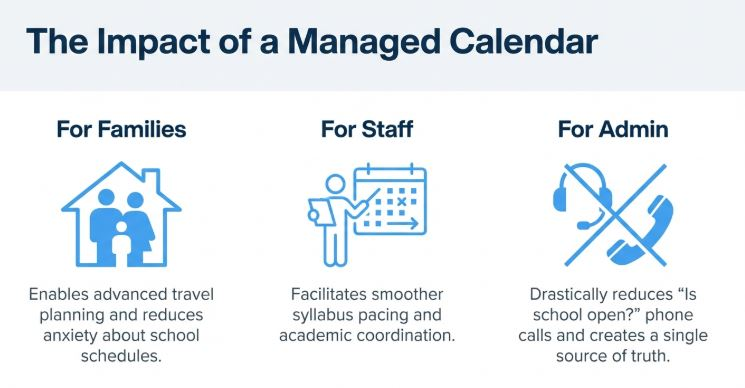
- Staff and families can plan travel and leaves in advance
- Reduces last-minute confusion and calls to school office
- Makes academic planning smoother for teachers and coordinators
- Provides a consistent “single source of truth” inside InstaClass